
You open your Excel file.
Everything looks fine.
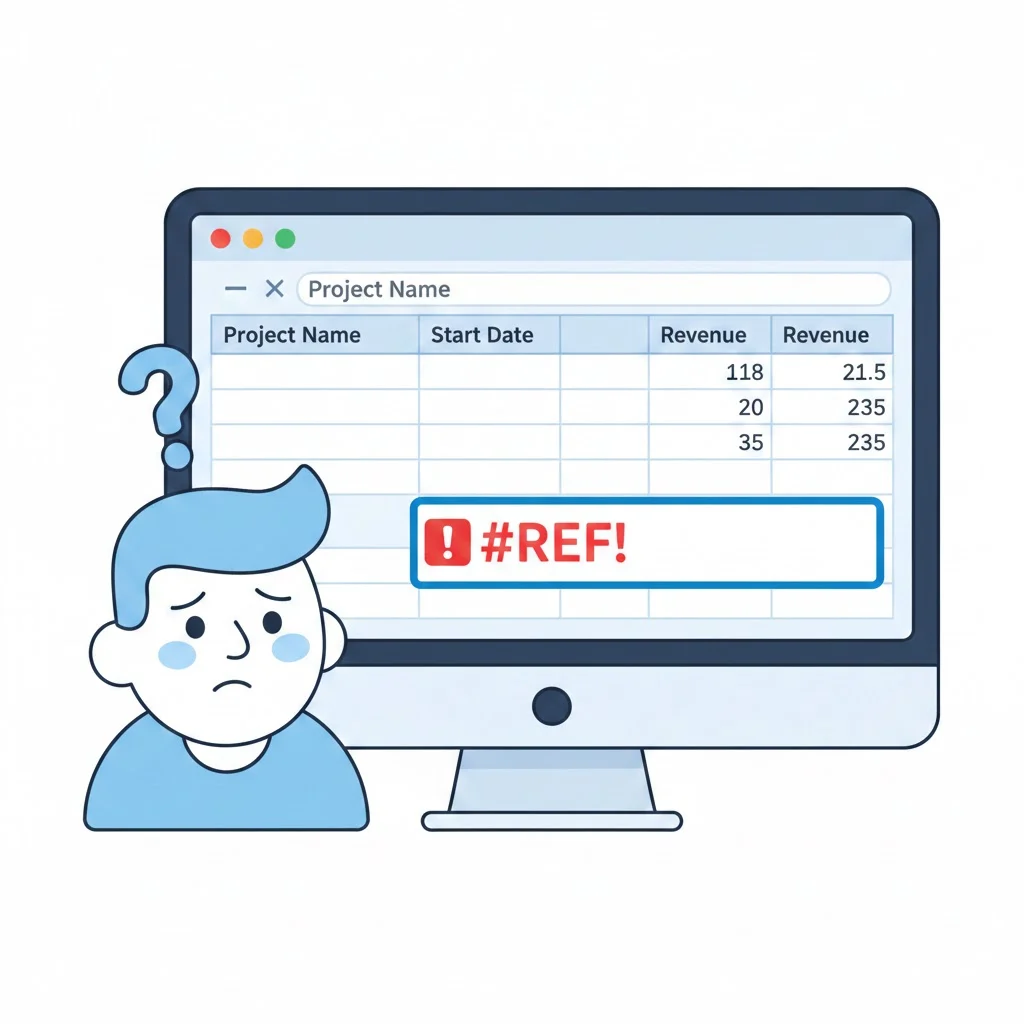
Then suddenly… #REF! appears in a cell.
Confusing? Frustrating? Totally normal.
If you’ve ever asked yourself what does #REF mean in Excel, you’re not alone. This error is one of the most common—and misunderstood—Excel errors. It shows up when formulas break, references disappear, or rows and columns get deleted by accident.
The good news?
#REF errors are easy to understand and fix once you know why they happen.
In this guide, you’ll learn:
- What #REF means in Excel
- Why it appears
- How to fix it step by step
- How to prevent it in the future
Whether you’re a student, office worker, accountant, or beginner, this article will make Excel feel less scary and more friendly.
What Does #REF Mean in Excel?
In simple words, #REF! means Excel can’t find something your formula is referring to.
The term REF stands for Reference.
So when you see #REF!, Excel is telling you:
“The cell, row, or column you’re trying to use no longer exists.”
Plain Explanation
- Excel formulas depend on cell references
- If those references are deleted or moved
- Excel breaks the formula
- Result: #REF! error
Example
=A1 + B1
If you delete column B, Excel changes the formula to:
=A1 + #REF!
That’s when the error appears.
Key Points to Remember
- #REF is not a calculation error
- It’s a missing reference error
- Excel isn’t broken—the formula is
Why Does the #REF Error Appear in Excel?
There isn’t just one reason.
There are several common causes.
Most Common Reasons
- Deleting rows or columns used in a formula
- Copying formulas incorrectly
- Moving cells without updating references
- Using invalid references in functions
- External file references being removed
Simple Rule
👉 If Excel can’t locate the referenced cell, it shows #REF!
Deleting Rows or Columns (Most Common Cause)
This is the #1 reason users see #REF in Excel.
What Happens
- You create a formula
- Later, you delete a row or column
- Excel loses the reference
Example
=SUM(A1:A5)
If you delete row A3, Excel may return:
=SUM(#REF!)
Why This Happens
Excel formulas depend on exact cell locations.
When those locations disappear, the formula breaks.
Tip
✔ Always double-check before deleting rows or columns used in formulas.
Copying and Pasting Formulas Incorrectly
Copy-paste errors are silent troublemakers.
Example Problem
You copy this formula:
=A1*B1
Paste it somewhere it shouldn’t be used.
Excel tries to adjust references.
If it fails, you see #REF!
Why It Happens
- Relative references move
- Absolute references don’t
- Wrong structure causes missing cells
Solution
Use absolute references when needed:
=$A$1*$B$1
Moving Cells Instead of Copying Them
Dragging cells can break formulas.
What Users Do
- Cut and paste cells
- Drag columns around
- Rearrange sheets
What Excel Does
- Tries to follow references
- Sometimes fails
- Shows #REF!
Safer Option
✔ Copy instead of cut
✔ Use “Paste Special” when needed
Using #REF in VLOOKUP and XLOOKUP
Lookup functions are sensitive.
Example
=VLOOKUP(A2, A1:C10, 4, FALSE)
If the table only has 3 columns, Excel returns:
#REF!
Why?
The column index doesn’t exist.
Fix
- Make sure column numbers are valid
- Double-check lookup ranges
#REF Error in Excel Charts
Yes, charts can break too.
When It Happens
- Chart uses data from deleted cells
- Source range no longer exists
Result
- Blank chart
- Or #REF warning
Fix
- Right-click chart
- Select Data Source
- Update the range
#REF Error from External File Links
This happens when Excel connects to another file.
Example
='[Sales.xlsx]Sheet1'!A1
If:
- File is deleted
- File is moved
- File name changes
You get #REF!
Solution
- Restore the file
- Update the link
- Use Data → Edit Links
How to Find #REF Errors Quickly
Large spreadsheets make errors hard to spot.
Easy Methods
- Use Find & Replace
- Press
Ctrl + F - Search for #REF
- Press
- Use Error Checking
- Go to Formulas → Error Checking
Pro Tip
Use Conditional Formatting to highlight errors.
How to Fix #REF Errors in Excel
Fixing depends on the cause.
Quick Fix Options
- Undo recent deletions (
Ctrl + Z) - Restore missing rows or columns
- Rewrite broken formulas
- Replace invalid references manually
Example Fix
Change:
=A1+#REF!
To:
=A1+B1
Preventing #REF Errors in the Future
Prevention is better than fixing.
Best Practices
- Use Tables instead of ranges
- Avoid deleting referenced cells
- Use Named Ranges
- Lock formulas with absolute references
- Keep backups
Smart Excel Habit
✔ Always test formulas after editing sheets
#REF vs Other Excel Errors
| Error | Meaning |
|---|---|
| #REF! | Missing reference |
| #DIV/0! | Division by zero |
| #VALUE! | Wrong data type |
| #NAME? | Unknown function |
| #N/A | Data not found |
Each error tells a different story.
Is #REF Dangerous?
No.
It won’t damage your file.
But:
- It can break reports
- It can affect calculations
- It can mislead decisions
So it should never be ignored.
#REF in Google Sheets vs Excel
Good to know.
| Platform | Behavior |
|---|---|
| Excel | Shows #REF! |
| Google Sheets | Also shows #REF! |
Same concept.
Same fix.
FAQs
What does #REF mean in Excel in simple terms?
It means Excel can’t find a cell your formula is using.
Can I hide #REF errors?
Yes. Use:
=IFERROR(formula, "")
Does #REF mean my file is corrupted?
No. It only means a reference is missing.
Can #REF fix itself?
Only if you undo the action that caused it.
Is #REF common?
Yes. Very common, especially for beginners.
Does deleting sheets cause #REF?
Yes, if formulas reference that sheet.
Conclusion
Now you know exactly what does #REF mean in Excel and why it appears. This error simply tells you that Excel lost track of a cell, row, column, or file your formula depends on. While it looks scary at first, #REF errors are easy to fix and prevent with good habits like using tables, checking formulas, and avoiding unnecessary deletions. Understanding this error helps you work faster, smarter, and with more confidence in Excel. The next time #REF shows up, you’ll know exactly what to do.