
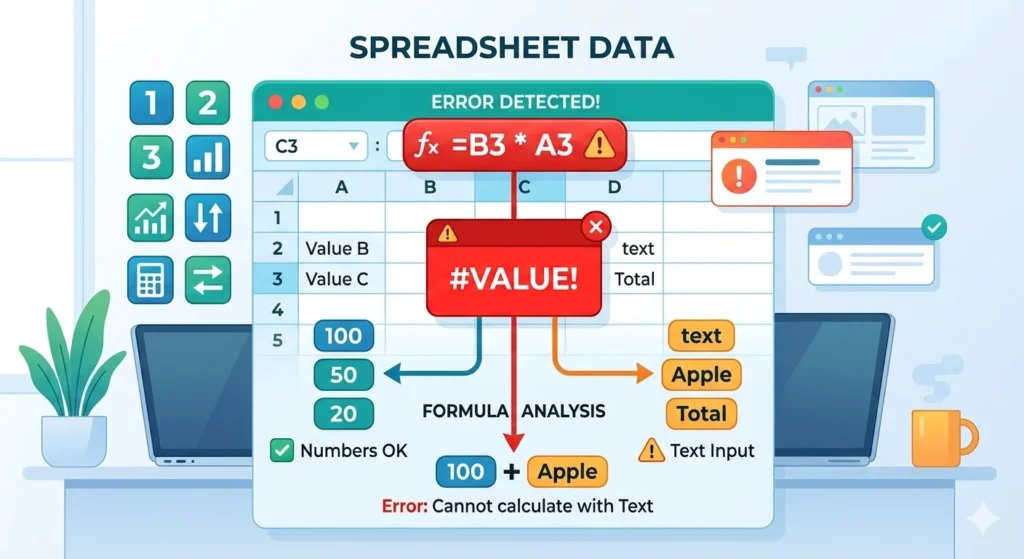

#VALUE! in Excel is an error that appears when a formula uses the wrong type of data. It usually happens when Excel expects a number, date, or text but receives an incompatible value, making the calculation impossible.
If you work with spreadsheets regularly, you have probably encountered Excel errors that seem confusing at first glance. One of the most common and frustrating ones is #VALUE!. The error can suddenly appear in a cell where a formula previously worked or when you try to combine different types of data.
Fortunately, the #VALUE! error is not as mysterious as it seems. Once you understand what triggers it and how Excel handles data types, fixing the problem becomes much easier.
In this complete guide, you will learn what #VALUE means in Excel, why it appears, how to fix it step by step, and how to prevent it in future spreadsheets.
What Does #VALUE Mean in Excel?
In Excel, #VALUE! indicates that a formula contains an invalid data type or incompatible value.
In simple terms, Excel shows #VALUE! when it cannot perform a calculation because the inputs do not match what the formula expects.
For example, if a formula attempts to add a number to text, Excel will return #VALUE! instead of producing a result.
Why the #VALUE Error Appears
The #VALUE! error usually appears because of mismatched data types. Excel formulas expect certain kinds of inputs such as numbers, dates, or text. When something unexpected appears, the formula fails.
Several common situations can trigger this error.
Text Used Instead of Numbers
One of the most frequent causes is when numbers are stored as text.
Example:
A1 = 50
A2 = “twenty”
Formula:
A1 + A2
Result:
#VALUE!
Excel cannot add the word “twenty” to a number.
Hidden Spaces or Non Printing Characters
Sometimes the data appears correct but contains hidden characters or extra spaces.
Example:
A1 = ” 25 “
A formula that expects a number may treat this as text and return #VALUE!.
Incorrect Formula Arguments
Certain Excel functions require specific input types. When the wrong type is used, Excel cannot complete the operation.
Example:
Using text inside a mathematical function.
Cells Containing Errors
Another possible cause is referencing a cell that already contains an error.
Example:
If cell B2 contains an error and a formula references B2, the error may spread.
Incorrect Date Formats
Excel stores dates as numbers internally. When a date is entered in an invalid format, formulas may produce #VALUE!.
Example:
Entering a date as text rather than a recognized date format.
Example Table of #VALUE Errors
| Situation | Formula | Result |
|---|---|---|
| Adding number and text | =A1+A2 | #VALUE! |
| Multiplying text value | =A1*B1 | #VALUE! |
| Invalid date calculation | =A1+7 | #VALUE! |
| Function with wrong argument | =SUM(“text”) | #VALUE! |
These examples illustrate how easily the error can occur when Excel encounters incompatible values.
How to Fix the #VALUE Error in Excel
Fortunately, fixing this error is usually straightforward once you identify the cause.
Check the Data Type
First, confirm whether the values involved are numbers, text, or dates.
If a number is stored as text, convert it to a number.
Common methods include:
- Using the VALUE function
- Re entering the number manually
- Removing leading spaces
Remove Extra Spaces
Sometimes extra spaces cause Excel to treat numbers as text.
The TRIM function can help clean the data.
Example:
TRIM(A1)
This removes unnecessary spaces.
Convert Text to Numbers
When numbers are stored as text, converting them resolves many errors.
Possible solutions include:
- Multiply the value by 1
- Use the VALUE function
- Use the Text to Columns tool
Review Formula References
Next, check the formula itself.
Make sure all referenced cells contain compatible data types. If a referenced cell already has an error, fixing that cell will often solve the issue.
Use Error Handling Functions
Excel provides built in functions to handle errors gracefully.
One of the most useful options is:
IFERROR
Example:
IFERROR(A1+B1,”Error detected”)
Instead of displaying #VALUE!, the cell will show a custom message.
Real World Examples of #VALUE Errors
Understanding how the error appears in real scenarios can make troubleshooting easier.
Example 1: Budget Spreadsheet
A user enters monthly expenses in a column. One cell accidentally contains the word “none” instead of a number.
When Excel calculates the total, it displays #VALUE!.
Solution: Replace the text with a numeric value.
Example 2: Importing Data from Another System
Data imported from external software often contains hidden characters.
A formula referencing these cells may produce #VALUE! until the data is cleaned.
Example 3: Date Calculations
A spreadsheet attempts to add seven days to a date.
However, the date is stored as text rather than a true Excel date.
The formula returns #VALUE!.
Converting the cell to a proper date format solves the issue.
#VALUE Compared with Other Excel Errors
Excel displays several different error messages, each with its own meaning.
Understanding the difference helps identify problems faster.
Excel Error Comparison
| Error | Meaning |
|---|---|
| #VALUE! | Invalid data type in formula |
| #DIV/0! | Division by zero |
| #REF! | Invalid cell reference |
| #NAME? | Excel does not recognize a formula name |
| #N/A | Value not available |
Among these, #VALUE! specifically relates to incompatible input types.
Tips to Prevent the #VALUE Error
Preventing the error is easier than fixing it after it appears.
Here are some practical habits that help reduce the chances of seeing #VALUE!.
Keep Data Types Consistent
Ensure that numeric columns contain only numbers.
Avoid mixing text and numbers in the same data range.
Clean Imported Data
When importing data from external sources, remove unnecessary spaces and formatting issues before running formulas.
Validate Data Entry
Using data validation rules helps prevent incorrect values from being entered.
For example, you can restrict a column to numbers only.
Use Error Handling Functions
Functions such as IFERROR or ISNUMBER can help manage unexpected values before they break formulas.
Alternate Meanings of #VALUE
In Excel and spreadsheet software, #VALUE! has a specific technical meaning related to formulas and data types.
Outside Excel, the phrase “value error” might refer to programming issues or data processing errors. However, in spreadsheets, it almost always refers to invalid input in a formula.
Polite or Professional Ways to Explain the Error
When working with colleagues or clients, explaining the error clearly can help resolve spreadsheet problems faster.
Professional explanations might include:
The formula cannot calculate because one of the cells contains text instead of a number.
The spreadsheet contains incompatible data types.
The formula references a value that Excel cannot interpret correctly.
These explanations help users understand the problem without technical confusion.
Frequently Asked Questions
1. What does #VALUE mean in Excel?
#VALUE! means Excel cannot perform a formula because it encountered an incompatible data type.
2. Why does Excel show #VALUE in formulas?
The error usually appears when text is used where a number or date is expected.
3. How do I fix a #VALUE error?
Check the data types, remove extra spaces, convert text to numbers, and verify the formula references.
4. Can spaces cause a #VALUE error?
Yes. Hidden or extra spaces can make Excel interpret numbers as text.
5. What function can hide the #VALUE error?
The IFERROR function can replace the error with a custom message or value.
6. Does #VALUE mean the formula is wrong?
Not always. Sometimes the formula is correct, but the data used in it is incompatible.
7. Can dates cause #VALUE errors?
Yes. If Excel cannot recognize a date format, formulas using that date may return the error.
8. Is #VALUE a serious Excel problem?
Usually it is not serious. Most of the time, it can be fixed quickly by correcting the input data.
Conclusion
The #VALUE! error in Excel appears when a formula receives an incompatible type of input. In most cases, the issue occurs because numbers, text, or dates are mixed incorrectly.
To summarize the key points:
#VALUE appears when Excel cannot process a formula input
It often happens when numbers are stored as text
Hidden spaces and incorrect formatting can also trigger the error
Cleaning data and checking formula references usually fixes the problem
Error handling functions can prevent the issue from disrupting your spreadsheet
Once you understand why #VALUE! appears, troubleshooting Excel formulas becomes much faster and far less frustrating.
Discover More Post
What Does … Mean in Text? Ellipsis Meaning Explained for …
MB Meaning in Text What Does MB Stand For in Messages …
What Does Wyll Mean , How to Use It 2026 – DefineHubs.com –